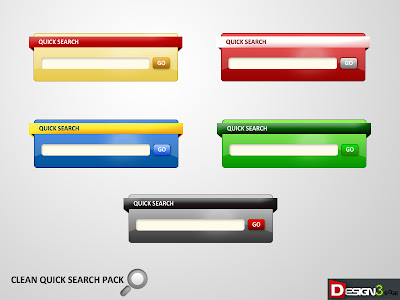
Stylish And Awesome Search Engine Box For Your Blog & Website
Add a search engine in the sidebar of your blogger blog. This searches
all the posts on your blog, and displays them by latest posts first.
Inside the search bar you will find the text "Search this Site", this
can easily be changed to any text you desire. Such as "Search my Site",
"Search", "Type and Hit Enter", etc. Just simply replace the code. You
can also change the text "Go" on the button to something like "Search",
"Find", etc.
Features:
1.) 5 Stylish And Awesome Designs.
2.) "q" Value Search Coding.
3.) Easy To Use.
4.) Accurate Result.
5.) Quick To Load.
How To Add In Blogspot?
1.) Go To Your
www.blogger.com
2.) Open Your Desire Blog.
3.) Go To Layout.
4.) Click "Add A Gadget" Where You Want To Add It.
5.) Now Scroll To "HTML-JAVASCRIPT"
6.) Click "+" Icon To Add It.
7.) Now Copy The Below Code And Paste It To There.
8.) Leave The Title Empty.
9.) Click Save, Now You Are Done.
How To Add In Website?
1.) Just Go To Your HTML File.
2.) Now Copy The Below Code And Paste It Between
<body> </body>.
3.) Save It, Now You Are Done.
======X======X======X======
Style 1:

<!-- This Is A CopyRight Search Engine.It Is Free To Use But With
HTML Design Code.If AnyOne Found To Be Changing This Code Should Be
Under Legal Action. -->
<style type="text/css">
#exe-searchbox{background:url(https://blogger.googleusercontent.com/img/b/R29vZ2xl/AVvXsEgr69YRrsGU875rzzNpJELI1VM208CJNI4x8XXIIBk08tKFexnuvFV2ozHzxV7DTvESzn_qkW6XV_Bu7R4NhIzmCOds_V-oGLAFbmhEm2_RNcmTcRkib3fgybC_MgexIRlBILrs_dAajQ/s1600/Yellow-Search-Engine.png)
no-repeat scroll center center
transparent;width:310px;height:100px;disaply:block;}
form#exe-searchform{display: block;padding-top:51px; padding-left:30px;;margin:0;}
form#exe-searchform #s{padding-top:3px; padding-left:1px; width: 208px;
font-size:14px; vertical-align:top; border:none;
background:transparent;}
form#exe-searchform #sbutton{padding-top:10px; padding-right:25px;
height:15px; width:15x; border:none; background:transparent;}
</style>
<div id="exe-searchbox">
<form id="exe-searchform" action="/search" method="get">
<input type="text" id="s" name="q" value="Search Here..." onfocus='if (this.value == "Search Here...")
{this.value = ""}' onblur='if (this.value == "") {this.value = "Search Here...";}'/>
<input type="image" src="http://img1.blogblog.com/img/blank.gif" id="sbutton" />
</form><div dir="ltr" style="text-align: left;" trbidi="on">
<div style="text-align: center;">
<a
href="http://trickshome786.blogspot.com/2013/06/Stylish-Search-Engine.html"
target="_blank"><span style="color: #bf9000;"><span
style="font-size: small;">Get This
Widget</span></span></a></div>
</div>
======X======X======X======
Style 2:

<style type="text/css">
#exe-searchbox{background:url(https://blogger.googleusercontent.com/img/b/R29vZ2xl/AVvXsEgAmyoVcgq868DVr2NtlWsqt87Svc7n2HjHBm_mL9YI5G7onbTFVMkh3-AgZmpGVervE0Ys6YsABHkh0VDVwWzWMj44jEWo6g5GjNi_H4VDru7X0qCePnlgci9kZembLBD3Y8rmu3LdGA/s1600/Black-Search-Engine.png)
no-repeat scroll center center
transparent;width:310px;height:100px;disaply:block;}
form#exe-searchform{display: block;padding-top:51px; padding-left:30px;;margin:0;}
form#exe-searchform #s{padding-top:3px; padding-left:1px; width: 208px;
font-size:14px; vertical-align:top; border:none;
background:transparent;}
form#exe-searchform #sbutton{padding-top:10px; padding-right:25px;
height:15px; width:15x; border:none; background:transparent;}
</style>
<div id="exe-searchbox">
<form id="exe-searchform" action="/search" method="get">
<input type="text" id="s" name="q" value="Search Here..." onfocus='if (this.value == "Search Here...")
{this.value = ""}' onblur='if (this.value == "") {this.value = "Search Here...";}'/>
<input type="image" src="http://img1.blogblog.com/img/blank.gif" id="sbutton" />
</form><div dir="ltr" style="text-align: left;" trbidi="on">
<div style="text-align: center;">
<span style="font-size: small;"><a
href="http://trickshome786.blogspot.com/2013/06/Stylish-Search-Engine.html"
target="_blank"><span style="color: black;">Get This
Widget</span></a></span></div>
</div>
======X======X======X======
Style 3:

<style type="text/css">
#exe-searchbox{background:url(https://blogger.googleusercontent.com/img/b/R29vZ2xl/AVvXsEgNwOw4xTxS4vP27iYva14PY7K1st_7XsA92DcPkK7Vof43kyn96Qkt5Vv-HPjgNO27qI8UCtYGPerZURENzBgMUXoLrxrvS-qOqrh06aDKl_7QO7PZmPriz5fLlSJesi9WF2tzJdC23Q/s1600/Blue-Search-Engine.png)
no-repeat scroll center center
transparent;width:310px;height:100px;disaply:block;}
form#exe-searchform{display: block;padding-top:51px; padding-left:30px;;margin:0;}
form#exe-searchform #s{padding-top:3px; padding-left:1px; width: 208px;
font-size:14px; vertical-align:top; border:none;
background:transparent;}
form#exe-searchform #sbutton{padding-top:10px; padding-right:25px;
height:15px; width:15x; border:none; background:transparent;}
</style>
<div id="exe-searchbox">
<form id="exe-searchform" action="/search" method="get">
<input type="text" id="s" name="q" value="Search Here..." onfocus='if (this.value == "Search Here...")
{this.value = ""}' onblur='if (this.value == "") {this.value = "Search Here...";}'/>
<input type="image" src="http://img1.blogblog.com/img/blank.gif" id="sbutton" />
</form><div dir="ltr" style="text-align: left;" trbidi="on">
<div style="text-align: center;">
<span style="color: #0b5394; font-size: small;"><a
href="http://trickshome786.blogspot.com/2013/06/Stylish-Search-Engine.html"
target="_blank">Get This Widget</a></span></div>
</div>
======X======X======X======
Style 4:

<style type="text/css">
#exe-searchbox{background:url(https://blogger.googleusercontent.com/img/b/R29vZ2xl/AVvXsEjNGYTjpvQjWEzp5TkR3aAag93Tarnn6fVLOkkwW-_IC6-PCXHukCyA6rW3Yc3HFqmeDeFddFaZkZfoglabHiGvtmRVk9tmbj1N6v65owIR5sd7OCIjfWvPAdfAGLx41FOD8z0KLFyd-A/s1600/Green-Search-Engine.png)
no-repeat scroll center center transparent;width:310px;height:100px;disaply:block;}
form#exe-searchform{display: block;padding-top:51px; padding-left:30px;;margin:0;}
form#exe-searchform #s{padding-top:3px; padding-left:1px; width: 208px;
font-size:14px; vertical-align:top; border:none;
background:transparent;}
form#exe-searchform #sbutton{padding-top:10px; padding-right:25px;
height:15px; width:15x; border:none; background:transparent;}
</style>
<div id="exe-searchbox">
<form id="exe-searchform" action="/search" method="get">
<input type="text" id="s" name="q" value="Search Here..." onfocus='if (this.value == "Search Here...")
{this.value = ""}' onblur='if (this.value == "") {this.value = "Search Here...";}'/>
<input type="image" src="http://img1.blogblog.com/img/blank.gif" id="sbutton" />
</form><div dir="ltr" style="text-align: left;" trbidi="on">
<div style="text-align: center;">
<span style="font-size: small;"><a
href="http://trickshome786.blogspot.com/2013/06/Stylish-Search-Engine.html"
target="_blank"><span style="color: #6aa84f;">Get This
Widget</span></a></span></div>
</div>
======X======X======X======
Style 5:

<style type="text/css">
#exe-searchbox{background:url(https://blogger.googleusercontent.com/img/b/R29vZ2xl/AVvXsEg6GnV-PtEOuMClsUkXp_igRBD9QWCRVPtCVlED37o63V86FramSkmybwdFLJ4etPPjpQrcMM5k4bNrxwFmxEZAwg9dOI7So4l_0bj1a6M-TVIsO0PfmzKqhlfz-3gwCfLuClYZ_n2ayQ/s1600/Red-Search-Engine.png)
no-repeat scroll center center
transparent;width:310px;height:100px;disaply:block;}
form#exe-searchform{display: block;padding-top:51px; padding-left:30px;;margin:0;}
form#exe-searchform #s{padding-top:3px; padding-left:1px; width: 208px;
font-size:14px; vertical-align:top; border:none;
background:transparent;}
form#exe-searchform #sbutton{padding-top:10px; padding-right:25px;
height:15px; width:15x; border:none; background:transparent;}
</style>
<div id="exe-searchbox">
<form id="exe-searchform" action="/search" method="get">
<input type="text" id="s" name="q" value="Search Here..." onfocus='if (this.value == "Search Here...")
{this.value = ""}' onblur='if (this.value == "") {this.value = "Search Here...";}'/>
<input type="image" src="http://img1.blogblog.com/img/blank.gif" id="sbutton" />
</form><div dir="ltr" style="text-align: left;" trbidi="on">
<div style="text-align: center;">
<span style="font-family: Arial,Helvetica,sans-serif;"><span
style="font-size: small;"><a
href="http://trickshome786.blogspot.com/2013/06/Stylish-Search-Engine.html"
target="_blank"><span style="color: #e06666;">Get This
Widget</span></a></span></span></div>
</div>,,